
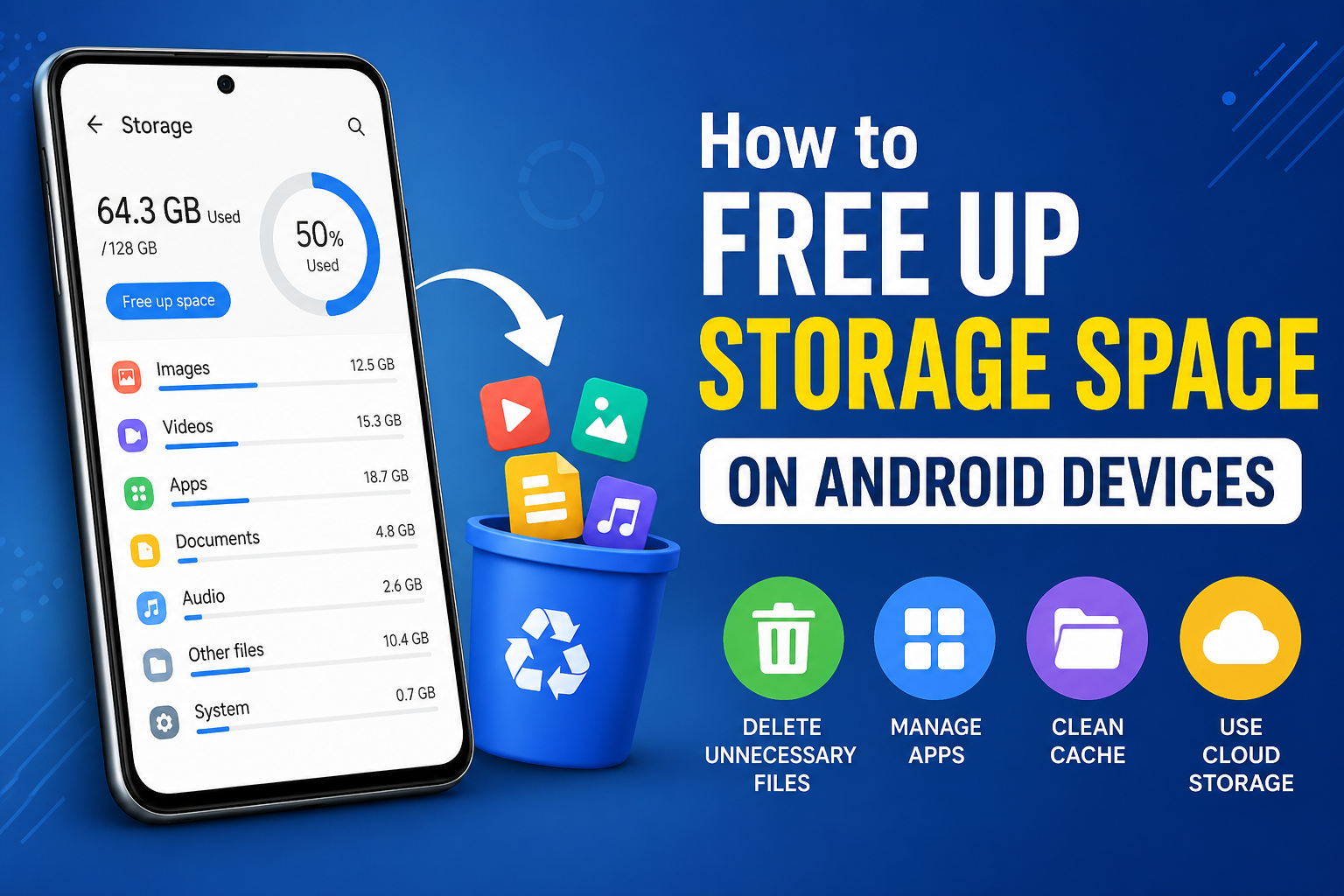
How to Free Up Storage Space on Android Devices
You’re certainly not the only Android user who experiences slow performance or a constant “storage” warning. Storage space has a major impact on how smoothly your Android device runs. When your phone becomes cluttered with files, applications, and hidden information, it has trouble performing daily tasks. Apps may crash and updates might fail. Even taking photos will become difficult. Imagine your phone’s screen as a cluttered space.
Ensuring your phone has enough free space (at most 10-15%) will make it faster and run more efficiently. What’s the good news? You don’t even need to know how to use a computer to fix this issue. In just a few steps you can boost your performance and free up space.
Check What Uses Your Storage
Before you delete anything, check what is currently taking up space on your device. Open Storage from your Android’s Settings. This section shows you how much space apps, pictures, videos, and files take up.
This will help you determine what to remove. This allows you to eliminate certain apps without having to guess. Before you make any decisions, it’s a good idea to check your expenditures.
Delete Unused Apps
Most people have apps which they rarely use. These apps take up space and may even run in the backround. Uninstall all the apps that you do not need.
You should ask yourself if you’ve used the app in recent months. Later, you can always reinstall. This simple move can help you free up tons of space.
Clean Cache & Junk Files
Cache, also known as temporary data or cache, is stored by apps to help them load faster. Over time, the cache grows and occupies space. The good news is that you can safely delete it without losing important data. You can delete it safely without losing valuable data.

Go to settings > Apps, select an app and click Storage > Clear Cache. Focus on apps that you use frequently, such as social media, browsers and streaming applications. Clearing your cache regularly can help you free up hundreds or megabytes.
Manage Pictures and Videos
Photo and video storage is the largest consumer of space. To avoid deleting memories, you can backup them to cloud-based services such as Google Photos. Once backed-up you can remove the photos from your device.
Check also for duplicate files. Many times the same image is saved more than one time, especially in messaging apps. Remove duplicates to free up some space.
Clean Your Downloads Folder
This folder can hold a lot unnecessary files. Over time you may find that your Downloads folder is cluttered with old PDFs.
Take a couple of minutes to look through the folder. Delete anything you don’t need. You’ll be amazed how much space this simple step can free up.
Control WhatsApp, Social Media Storage
WhatsApp and other apps download media automatically, which can fill up your hard drive quickly. You can delete unwanted media by going to the settings for your app. To prevent future clutter, you can also disable the auto-download feature.
This small adjustment can add up over time.
Use an External or Cloud-Based Storage
If your phone supports a SD card, you can transfer large files including videos and pictures to it. This will instantly release internal storage. Cloud storage services are another way to protect files without consuming device space.
Final Words
Simple steps can be taken to make your Android device more storage-friendly. You can boost your phone performance quickly by deleting unneeded apps, cleaning cache, managing the media files, or using external storage. The key to success is consistency. A regular cleaning schedule will keep your phone running smoothly and avoid future storage issues.
FAQs
1. How often can I clean up my phone storage space? Every month at the very least to keep your device operating smoothly.
2. Can I delete data after clearing my cache?
3. Photos, videos, applications, and app-data are usually the largest storage users.
4. Can I get back deleted files only if backups or cloud storage were made?
5. SD cards are not directly responsible for a phone’s speed. They can free up space but not necessarily increase it.